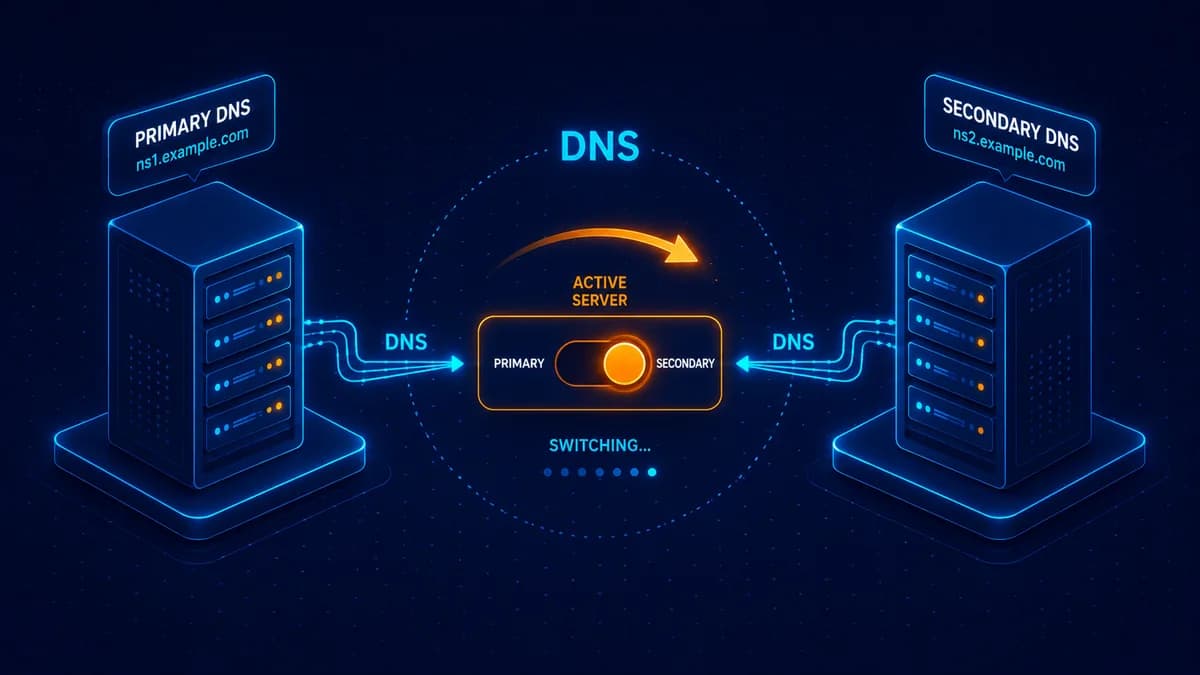
Changing nameservers in 2026 is the single most common cause of avoidable website downtime. The fix is simple: set up the destination DNS records before you flip the switch, lower your TTL ahead of time, and verify in two places before you walk away.
Here's the safe sequence.
What "changing nameservers" actually means
Your domain has 2-4 nameservers (NS records) listed in the registry. They tell the world which DNS server is authoritative for your domain — i.e., which server to ask for the A, MX, CNAME records.
When you change nameservers, you're saying "from now on, ask THIS provider for my DNS." Whatever DNS records that new provider has are the ones the world will see. If those records aren't set up first, your site goes down.
Common reasons to change nameservers:
- Moving to Cloudflare for CDN/DDoS protection
- Migrating hosting providers
- Consolidating multiple domains under one DNS provider
- Switching off a registrar's slow DNS to a faster one
The 5-step safe procedure
Step 1 — Map your current DNS records
Login to your CURRENT DNS provider (usually your registrar, sometimes Cloudflare or a hosting panel). Export or screenshot every record. Specifically:
- A —
@andwww(your website's IP address) - MX — your email provider's mail servers
- TXT — SPF, DKIM, DMARC, domain verification strings
- CNAME — any subdomains (
api,app,cdn) - AAAA — IPv6 if you have it
Tools to help: dig +noall +answer yourdomain.com any or whatsmydns.net lookup.
Step 2 — Lower the TTL on every record
Set TTL to 300 seconds (5 minutes) for every record on your CURRENT DNS, then wait 24 hours. This means: when something needs your DNS info, it'll only cache for 5 minutes — so if you need to roll back after the switch, recovery is fast.
If you skip this step and TTL is at default 86400 (24 hours), a botched switch means up to 24 hours of broken site.
Step 3 — Set up the destination DNS provider
In your NEW DNS provider (Cloudflare, AWS Route 53, your new hosting panel), recreate every record from Step 1. Don't delete anything in the old provider yet — both are configured in parallel.
Verify the new DNS independently before pointing nameservers:
dig @new-dns-server.com yourdomain.com any
If you can resolve all records via the new DNS while it's not yet authoritative, you're ready.
Step 4 — Update the nameservers at your registrar
This is the actual flip. At REXO HOST: My Domains → click your domain → Change nameservers → enter the new ones (e.g., amber.ns.cloudflare.com, kai.ns.cloudflare.com).
Operator review: nameserver changes at REXO HOST are reviewed within a few hours. Other registrars apply immediately but propagation still takes time.
Step 5 — Monitor propagation
Use whatsmydns.net and search your domain → NS record. The world maps will show where the new nameservers have propagated. Most regions update within 1-4 hours; full global propagation can take 48 hours but rarely does.
Test from your phone (cellular network) — different DNS resolver than your home WiFi. If both resolve correctly via the new provider, you're done.
What can go wrong
"I changed nameservers and now my email is down"
You forgot to copy the MX records to the new DNS provider. Add them ASAP. Email was queued by senders for retries — most providers retry for 48-72 hours, so you have a buffer.
"My website shows the old IP"
Either propagation hasn't reached your ISP's resolver yet (wait), or you didn't actually update the A record at the new DNS (check). Try dig from a different network.
"My SSL certificate broke"
If you used Let's Encrypt at your old hosting and the new hosting needs to issue its own cert, there's a brief window of mixed validation. Most modern hosts (Vercel, Netlify, AWS Amplify) handle this seamlessly. cPanel-style hosts sometimes need manual cert issuance.
"I lost my MX records and now email doesn't work"
If you didn't backup before the switch, contact your email provider — they have your MX records on file and can email them to you. Restore them at the new DNS provider, wait for propagation, email resumes.
Cloudflare-specific tips
Cloudflare is the most common destination because it's free, fast, and adds DDoS protection. Their onboarding scans your existing DNS automatically — you mostly don't have to recreate records by hand.
But: Cloudflare proxies records by default (the orange-cloud icon). For some records (MX, raw FTP) you want DNS-only (grey cloud). Their setup wizard usually gets this right but verify before pointing nameservers.
Frequently asked questions
Can I undo a nameserver change?
Yes — set the nameservers back to the old values at the registrar. If you lowered your TTL beforehand, recovery takes 5-10 minutes. If you didn't, plan for hours.
Do all 4 nameservers need to be from the same provider?
Yes, almost always. Mixing nameserver providers leads to inconsistent DNS responses and is a debugging nightmare. Stick to one provider's full set (usually 2-4 NS records they provide).
How long should I wait before deleting old DNS records?
Wait at least 7 days after global propagation completes. Some long-cached records (especially TXT for domain verification) can hang around for weeks.
Why does REXO HOST review nameserver changes?
Nameserver swaps are the #1 attack vector for domain hijacking — a compromised account changing nameservers redirects traffic + intercepts emails. We add a brief human review (a few hours) as a safety net. If you need same-day, message us on WhatsApp and we'll expedite.
Need help?
Contact us — for complex migrations (multiple domains, cluster of subdomains, mid-migration support) we'll walk you through on WhatsApp.
Keep reading
What is DNS? Explained for Non-Technical Founders
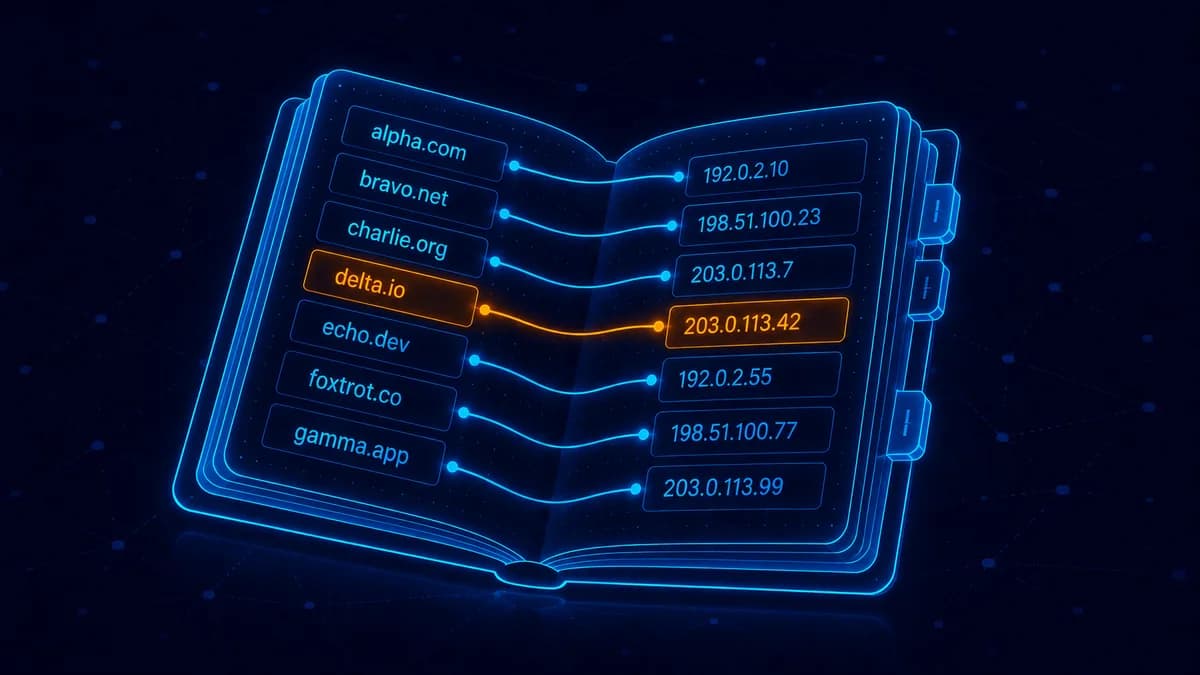
DNS is the address book of the internet. Plain-English guide to A records, MX records, nameservers, and what each one does.

What is a TLD? The Complete Guide for Non-Techies
Every domain ends in a TLD — .com, .org, .net, .us, .io. Here's what they are, how they're regulated, and which to pick.

Cloudflare Nameservers vs Registrar Nameservers — Which to Use?
When to keep DNS at your registrar, when to move it to Cloudflare, and how to do either without breaking your site.